Windows setup
Tapo camera on Windows: watch supported Tapo cameras on a PC.
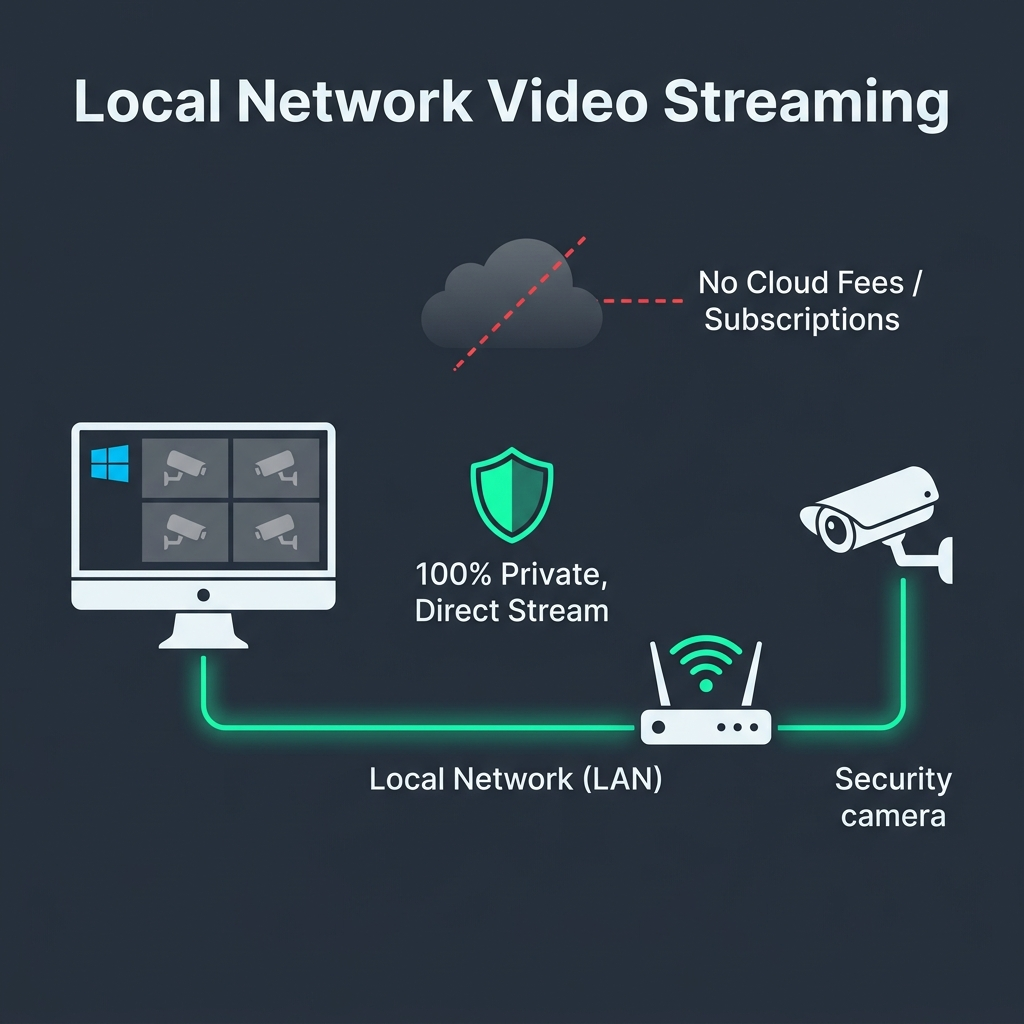
Use the TapoAppForPC desktop viewer to watch supported TP-Link Tapo cameras on a Windows PC without running the Tapo mobile app inside an Android emulator. The setup still starts with the exact camera model: wired RTSP / ONVIF models, the C425 native-protocol path, and unsupported battery firmware behave differently.
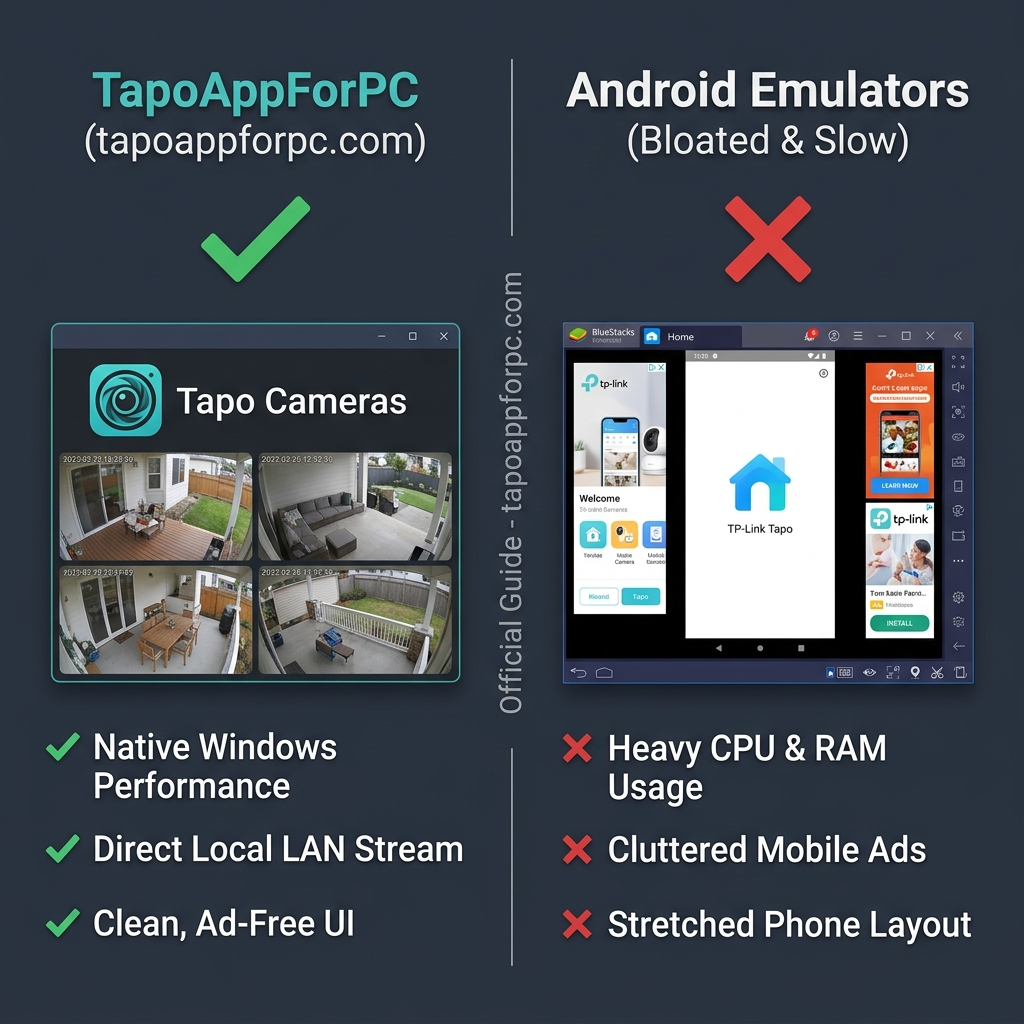
Fast answer: what works on Windows.
- You can watch supported TP-Link Tapo cameras on Windows with TapoAppForPC. The Windows PC and the camera need to be on the same local network.
- Most supported wired Tapo cameras use RTSP / ONVIF. Enable Camera Account in the Tapo phone app, then scan from TapoAppForPC.
- The Tapo C425 works differently. The C425 uses the native Tapo protocol inside TapoAppForPC instead of an RTSP URL.
- Check the model before changing Windows settings. Unsupported battery firmware will not become streamable because of a firewall or router tweak.
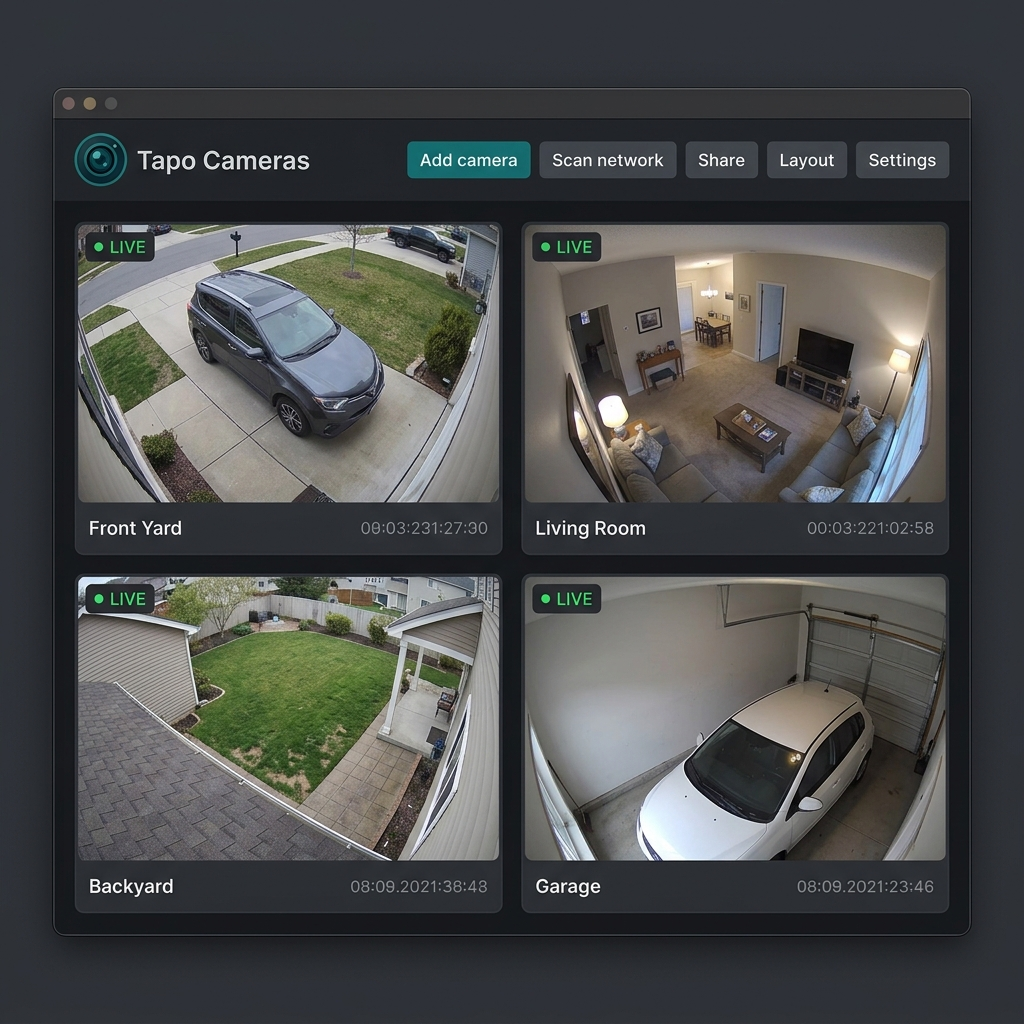
What you need before setup.
Start with the model and network requirements before opening the app. Most failed Windows setups are really compatibility, local-network, or Camera Account problems.
- A supported Tapo model
- Check the model first. Most supported wired Tapo cameras use Camera Account plus RTSP / ONVIF, while the C425 uses the native Tapo protocol instead of RTSP.
- A Windows PC on the same local network
- The camera and the Windows computer need to be on the same home network for local discovery and local streaming.
- Camera Account for wired RTSP models
- For wired models, enable Camera Account in the Tapo phone app before scanning from TapoAppForPC.
- TapoAppForPC web app access
- Use the paid web app, or preview the camera grid first in the free live demo. There is no native Windows installer yet.
Set up TapoAppForPC on Windows.
Use this order so you do not troubleshoot Windows before confirming the camera can actually expose a stream path.
- Check your exact model on the Tapo camera compatibility page before troubleshooting Windows.
- Put the Tapo camera and the Windows PC on the same Wi-Fi or wired LAN.
- For wired RTSP / ONVIF models, enable Camera Account in the Tapo phone app.
- Open TapoAppForPC on the Windows PC and start the local network scan.
- Select the camera, enter the Camera Account credentials if prompted, and open the live grid.
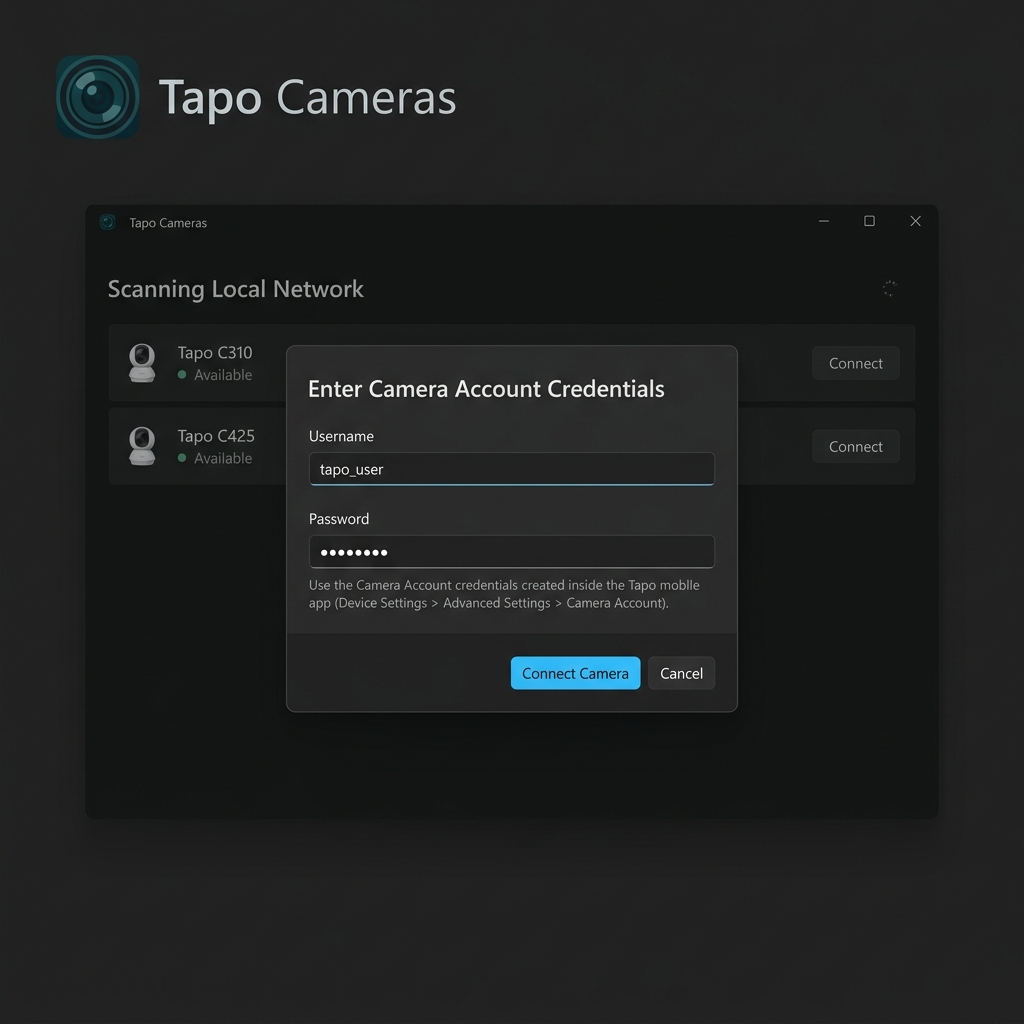
If Windows cannot find your Tapo camera.
Use this order: model, LAN, firewall, credentials, then manual IP. We put the model first because TapoAppForPC can only open a stream the camera firmware actually exposes. When we run a Windows scan, battery models like the Tapo C465 MagCam 4K and C615F KIT never show up as a live stream: their firmware disables the local stream path, so no amount of Windows Firewall or network tuning will bring those models into the grid. Confirm your model on the compatibility list first (the C425 is the battery exception, on the native Tapo protocol), then work through LAN, firewall, and Camera Account credentials, and keep manual IP entry as the last resort.
| Problem signal | Check next | Do this | What it proves |
|---|---|---|---|
| The Tapo phone app works, but Windows never gets a usable stream. | Search the exact model on the compatibility page before changing Windows settings. | If the model is unsupported or still testing, stop here and choose a supported RTSP model or the C425 path. | A model that does not expose a local stream will fail on every Windows network fix. |
| The camera is online in the phone app, but TapoAppForPC scan returns nothing. | Compare the Windows network name with the Wi-Fi or router segment used by the camera. | Move both devices onto the same router, mesh network, or VLAN; avoid guest Wi-Fi and isolated IoT networks for setup. | If discovery starts working after both devices are on the same LAN, Windows was never reaching the camera locally. |
| The model is supported and the network is correct, but scan still fails on Windows. | Check whether Windows Defender Firewall, security software, or the browser permission prompt blocked private-network access. | Allow the browser or local helper used by TapoAppForPC on the private network, then refresh the app and scan again. | If the camera appears after private-network access is allowed, the firewall was blocking discovery or the local connection. |
| The camera is found, but the live view will not open or keeps rejecting the login. | Confirm that Camera Account is enabled in the Tapo phone app for the camera. | Enter the Camera Account username and password created for local streaming, not just the TP-Link cloud account password. | If discovery works but authentication fails, the Windows path is usually reaching the camera and failing at the credential step. |
| The model is supported, credentials are ready, and the network is correct, but automatic discovery still misses the camera. | Find the camera IP address in your router device list or DHCP client list. | Use the manual add path with the camera IP, then enter Camera Account credentials if the model uses RTSP. | If manual IP works, discovery was the weak point; if manual IP fails too, return to model support, isolation, or credentials. |
After the table, use the notes below for the why behind each fix. They are deliberately more specific than “restart everything” because Windows discovery failures usually come from one blocked layer, not from the whole setup being bad.
1. Confirm the model is actually streamable
This is the first split we use because it saves the most wasted debugging. A C465-style battery firmware problem is not a Windows problem; a firewall rule, router reboot, or new browser will not create the missing local stream. If the model is listed as supported, continue to the local-network checks.
2. Put the Windows PC and camera on the same local network
Internet access is not enough. The phone app can still show the camera through TP-Link cloud while the Windows PC is blocked from local discovery. Guest networks, extender SSIDs, and IoT VLANs are the common traps because they look connected but deliberately prevent device-to-device traffic.
3. Allow Windows private-network access
When Windows asks whether to allow access on public or private networks, use the private-network option for your home LAN. Do not open broad public-network access just to make a camera appear; the goal is local discovery inside your own network, not exposing the camera to the internet.
4. Use Camera Account credentials for wired RTSP models
This is where many Windows setups look broken even though networking is already solved. RTSP-capable wired models use the Camera Account credentials made inside the Tapo app. Treat those as the local camera credentials for TapoAppForPC, VLC, and other RTSP tools.
5. Try manual IP only after the first four checks
Manual IP is a fallback, not the first step. It is useful when the router allows direct local traffic but blocks or hides discovery broadcasts. If you would rather type RTSP URLs into VLC by hand instead, that is the more manual route in the comparison further down this page.
Check your Tapo model before troubleshooting.
The Windows page does not own the full model matrix. Use the compatibility hub when you need the exact support status, protocol path, and next step for a Tapo model.
TapoAppForPC vs VLC and BlueStacks on Windows.
VLC and BlueStacks can help in specific cases, but they solve different jobs. This table keeps the three routes Windows users actually weigh; the homepage comparison scores all nine desktop routes if you want the full breakdown. Keep the Windows setup decision focused on the path you actually want to maintain.
| Windows route | What it requires | Best fit | Main tradeoff |
|---|---|---|---|
| TapoAppForPC | Supported model, same local network, Camera Account for wired RTSP cameras | Windows users who want a local Tapo camera grid without emulator setup | Compatibility still depends on the exact Tapo model and firmware. |
| VLC with RTSP URL | Manual camera IP, Camera Account credentials, and one RTSP URL per camera | Technical users who only need a single camera stream | No Tapo-focused grid and more manual setup on Windows. |
| BlueStacks Android emulator | Android emulator install, Google sign-in, TP-Link cloud sign-in | Users who specifically want the phone app interface on a PC | Heavier setup than a local desktop viewer and still runs the mobile app path. |
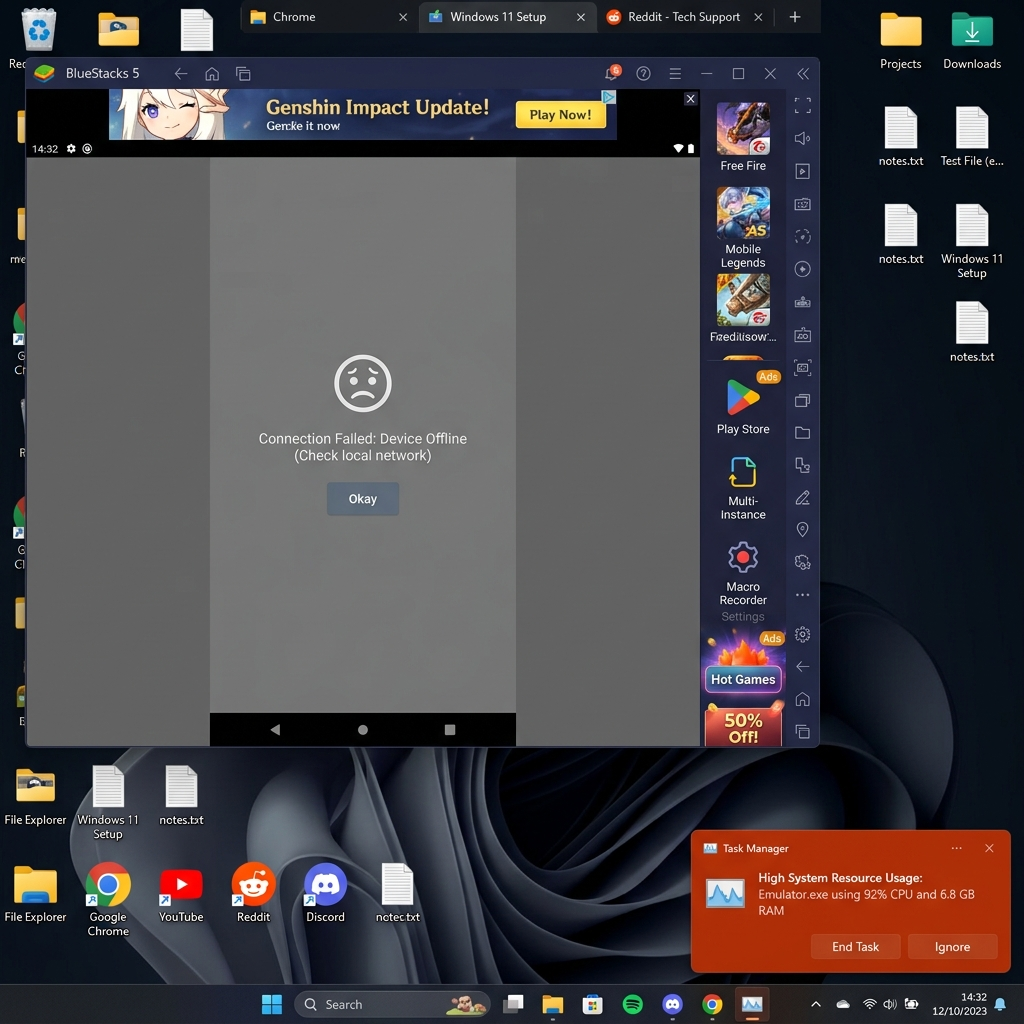
Try TapoAppForPC on Windows.
If your model has a supported stream path, buy the web app to open the local camera grid on your Windows PC, or preview the grid first in the free live demo with simulated streams. There is no native Windows installer yet; the web app runs in your browser on your own LAN.
Windows setup questions.
Can I watch a Tapo camera on Windows without BlueStacks?
Yes, if the model has a supported stream path. TapoAppForPC is built for local desktop viewing, so you do not need to run the Android Tapo app inside BlueStacks just to see supported cameras on a Windows PC.
Do I need RTSP to use TapoAppForPC on Windows?
Most supported wired Tapo cameras use RTSP / ONVIF after Camera Account is enabled. The Tapo C425 is the main battery exception and uses the native Tapo protocol instead of an RTSP URL.
Why cannot Windows find my Tapo camera?
The usual causes are Windows Firewall, a guest or isolated Wi-Fi network, wrong Camera Account credentials, or an unsupported model. Check compatibility first, then troubleshoot the local network.
Does the Tapo C425 work on Windows?
Yes. The Tapo C425 is supported through the native Tapo protocol path in TapoAppForPC, not through RTSP.
Can I use VLC instead on Windows?
Yes for RTSP-capable wired models, but VLC usually means typing one RTSP URL per camera and managing separate player windows. TapoAppForPC is the simpler path when you want a Tapo-focused desktop grid.
This Windows setup page is independent and not affiliated with TP-Link. Model support can change when TP-Link changes regional firmware or streaming features.